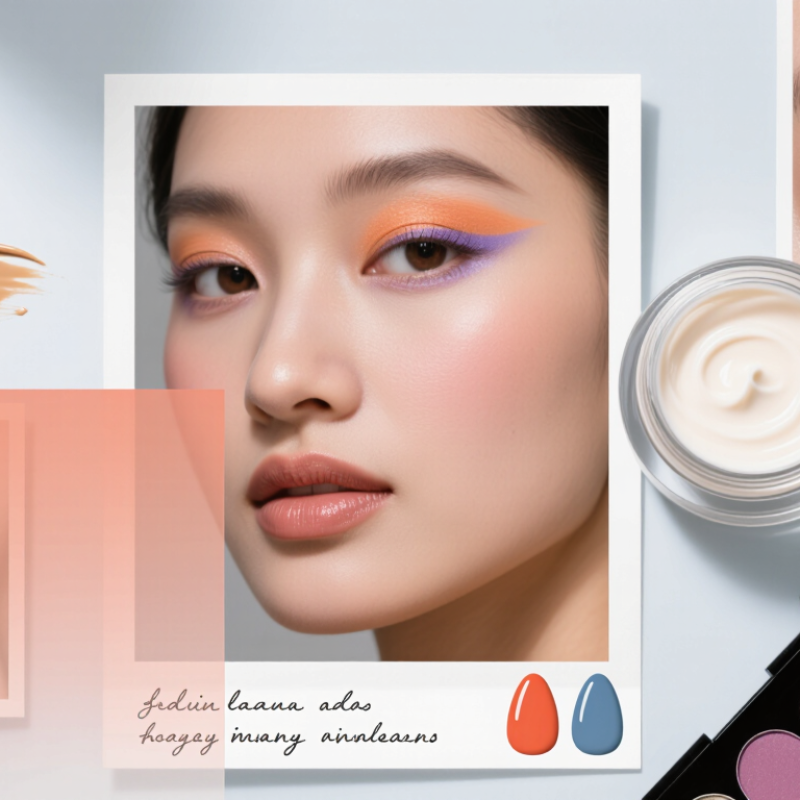
A digital beauty collage can bring together makeup, skin-care imagery, color, and texture in one clear visual story. Learning how to create a digital beauty collage helps you make deliberate choices instead of relying on random effects. You can compare warm and cool palettes, test different layouts, and see how a single detail changes the mood. Small choices matter.
A practical workflow starts with a specific idea, such as a soft peach makeup look or a glossy editorial portrait. Choose sharp images you have permission to use, then arrange them around one focal point. A close crop, a translucent color wash, or a handwritten note can add character without crowding the design. Keep original files, work in layers, and review the collage at both full size and thumbnail size. These simple habits make edits easier and help reveal clutter before you export.
The goal is not to make every image look flawless. Real skin has texture, and beauty references can feel more trustworthy when they avoid unrealistic retouching. I still find that a layout can look balanced on screen but too busy after export; that is worth checking. Learning this craft builds visual judgment, basic editing confidence, and a stronger sense of how beauty imagery communicates. It also gives you a flexible way to create mood boards, portfolio pieces, or personal experiments. Done thoughtfully, the process is creative, practical, and open to revision.
Understanding the Purpose and Benefits of Digital Beauty Collage
A digital beauty collage brings separate visual details—makeup textures, facial features, color swatches, and lighting—into one deliberate composition. Its purpose is not simply to make an image look polished. It can explore how colors interact, communicate a mood, or compare styling ideas before a photo shoot. A warm copper swatch beside cool lavender shadow, for instance, makes contrast easier to judge. Small choices matter. Digital editing also lets you resize, layer, and rearrange elements without changing the original image. Keep a copy of source files, and check that images are sharp enough for their intended display.
The process can build visual skills: noticing balance, edges, texture, and how attention moves across a page. Layers make revisions less risky; you can soften a cutout edge or reduce opacity instead of starting over. That saves time. A collage can also communicate a visual direction more clearly than vague descriptions. Still, digital tools do not guarantee good judgment. I sometimes find that adding one more highlight makes a face feel crowded, not more luminous. Stepping away from the screen helps, though I do not always remember to do it. A useful collage leaves room for interpretation while keeping its central idea visible.
Choosing Images, Editing Tools, and a Visual Theme
Why Learn How to Create a Digital Beauty Collage?
A digital beauty collage can turn scattered references into a clear visual direction. The image choices matter more than the number of pictures. Look for details that support your theme, such as soft skin texture, glossy color, or a sharp line of eyeliner. Use images you created or have permission to use. Check that they are clear enough to crop without becoming blurry. Similar lighting can help separate images feel like part of one scene.
Editing tools should make decisions easier, not bury the idea under effects. Basic features such as cropping, layers, and color adjustment are often enough. Try a limited palette, like warm peach, cream, and deep brown, then repeat those tones across the collage. Keep it simple. I sometimes over-edit small details and lose the original mood, so stepping away for a few minutes helps. Leave breathing room around focal images; crowded layouts can make even beautiful references hard to read.
Tips: Pick a visual theme before editing. Arrange images loosely, then compare their color, light, and scale. If one picture feels out of place, reconsider it rather than forcing a match. A slightly uneven layout can feel lively, but check that the eye still knows where to go.
Preparing Images and Arranging the Collage
Before arranging a digital beauty collage, collect images with a clear purpose: close-up skin texture, a makeup detail, and one wider portrait can create useful variety. Check image rights and keep source notes beside each file. Crop consistently, but do not erase natural differences in skin tone or texture. A warm cheek beside a cool-toned eye can work; mismatched lighting may make the whole board feel accidental. It is easy to over-polish. Keep an untouched copy of every original, and compare edits against it before committing.
Build the layout around one focal image, then let smaller details guide the eye across the page. Leave visible breathing room between crops; tight spacing can make textures feel muddy. If you add labels, keep them short and readable against their backgrounds. WebAIM’s 2024 Million report found low-contrast text on 81% of sampled home pages, a useful warning even though the study did not assess collages. Check text contrast, then zoom out to thumbnail size. Do the eyes still land where you intended? Sometimes one image feels oddly loud, and moving it only a few pixels helps. Not every arrangement clicks on the first pass.
Why Learn How to Create a Digital Beauty Collage? - Preparing Images and Arranging the Collage
| Stage |
Dimension or Setting |
How to Use It |
| Choose a canvas |
1920 × 1080 px (16:9) for a landscape digital layout |
Set the canvas to match the intended display shape before arranging images. This reduces unwanted cropping when exporting. |
| Plan a square layout |
2000 × 2000 px (1:1) |
Use a square canvas when the finished collage needs equal width and height. Keep important faces and details away from the outer edge. |
| Prepare for print |
8 × 10 in at 300 pixels per inch (ppi) = 2400 × 3000 px |
This is a practical print-canvas example. Check the print provider’s requirements for resolution, color profile, and any bleed before exporting. |
| Check image resolution |
Use the largest suitable source image; avoid enlarging small images unnecessarily |
Enlargement can make edges and fine beauty details look soft or pixelated. Crop images to the canvas shape where possible. |
| Choose a color space |
sRGB for most screen-based work |
sRGB is a common color space for web images. For print, follow the print provider’s requested color profile and export settings. |
| Select file formats |
PNG for transparency; JPEG for photographic images without transparency |
Use PNG for isolated cutouts that need transparent backgrounds. Keep a layered project file while editing so individual elements remain adjustable. |
| Prepare image cutouts |
Keep edges clean; inspect hair, lashes, and fine product contours at 100% zoom |
Refine masks around detailed edges and remove leftover background colors. This helps cutouts blend naturally into the composition. |
| Arrange the visual hierarchy |
Choose one primary focal image, then add supporting details |
Make the main face, makeup look, or beauty subject the clearest point of attention. Place smaller texture, product, or color-detail images around it. |
| Balance spacing |
Use consistent gaps and margins across the layout |
Align image edges or centers where appropriate. Consistent spacing makes a collage feel organized and leaves room for important details. |
| Review and export |
Check at final display size; export a copy in the required format |
Review cropping, contrast, and readability before export. Keep the editable original separate from the flattened delivery image. |
Refining the Composition with Color and Beauty Effects
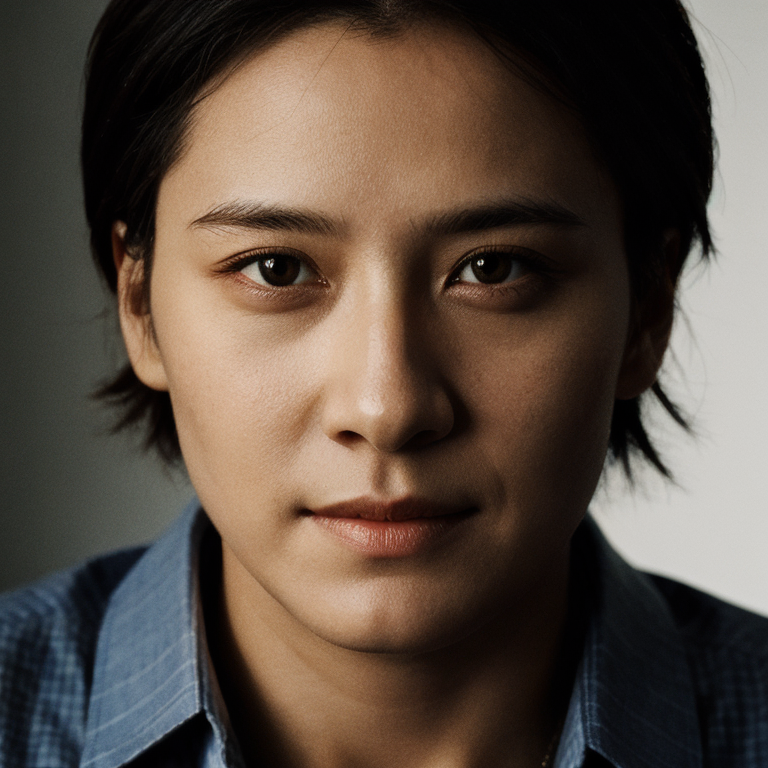
When refining a digital beauty collage, I adjust color before adding decorative effects. A warm highlight can make a portrait feel luminous, while a cooler background gives it space. Small shifts matter. I compare the image at thumbnail size and at full resolution; details that look delicate up close can become muddy when reduced. Keeping the original image nearby helps me notice when a tint has changed the skin too much.
Beauty effects work best when they support the composition, not compete with it. A soft glow near the cheekbone can guide the eye, and a faint grain can help layered elements feel more unified. Keep the skin believable. I usually lower an effect’s opacity, then bring it back gradually. This is slower, but it avoids the plastic look that strong smoothing can create. Check edges around hair and shoulders, where halos often appear.
Color balance is rarely perfect on the first pass. I sometimes push saturation too far, especially in pinks, then pull it back after stepping away. That mistake is useful, though a little annoying. Before finishing, inspect the collage on a neutral display setting and check that the brightest accents still have room to stand out. A restrained palette often makes the beauty details feel more intentional.
Why Learn How to Create a Digital Beauty Collage?
Refining the Composition with Color and Beauty Effects
This example allocates the canvas area across five collage elements. Giving the portrait the largest share keeps it prominent, while restrained accents and typography help maintain visual balance.
Exporting the Artwork and Developing Creative Skills
Exporting a digital beauty collage is part of the craft, not just a final button-click.
Keep an editable master with separate layers for skin tones, cut-outs, shadows, and text. Check edges at 100% zoom: a pale halo around a cheek may disappear on screen but stand out in print. PNG suits transparent artwork, while JPEG creates smaller web files. For print, follow the printer’s requested format and color settings; 300 ppi at the intended size is a common target. Save a separate copy before making changes. Overwriting is easy.
Tips: Name files with a version and dimensions, such as “collage_v03_2400px.” Preview the export on both a phone and a desktop. Keep color changes restrained. I sometimes push saturation too far, then have to dial back an unnatural blush.
Exporting also strengthens skills that transfer to other visual projects. The World Economic Forum’s Future of Jobs Report 2025 identifies creative thinking as a core skill for 57% of surveyed employers. Each revision offers practice in color control, visual hierarchy, and editing choices: does that highlight support the face, or distract from it? Reopen the file the next day. I often spot an imbalance I missed before. That pause can be more useful than adding another effect.
Conclusion
Learning how to create a digital beauty collage is a practical way to explore visual storytelling and develop a personal artistic style. The process begins with choosing images that fit a clear theme, then selecting editing tools suited to the desired look. Preparing the images by cropping, adjusting their size, and organizing them makes it easier to build a balanced composition.
Once the images are arranged, color choices and beauty effects can help unify the collage while keeping its details clear and engaging. Small refinements to spacing, contrast, and visual emphasis can make the final artwork feel more cohesive. Exporting the finished piece in an appropriate format preserves it for sharing or future use. With practice, each collage can strengthen creative skills, encourage experimentation, and help turn individual images into a thoughtful visual expression.
 Beauty Board